How can we
help you today?
Whether you need help installing your hardware or configuring the mobile app, the Black Boxes technical team is here to assist.
Hardware Setup
Installation guides, OBD-II port locations, and wiring schematics.
Android & IOS link
https://play.google.com/store/apps/details?id=com.ww.blackboxes
Billing & Plans
Subscription management, data plans, and invoice history.
Warranty & Returns
RMA processes, device replacement, and our 30-day guarantee.
Frequently Asked Questions
Quick answers to our most common technical inquiries.
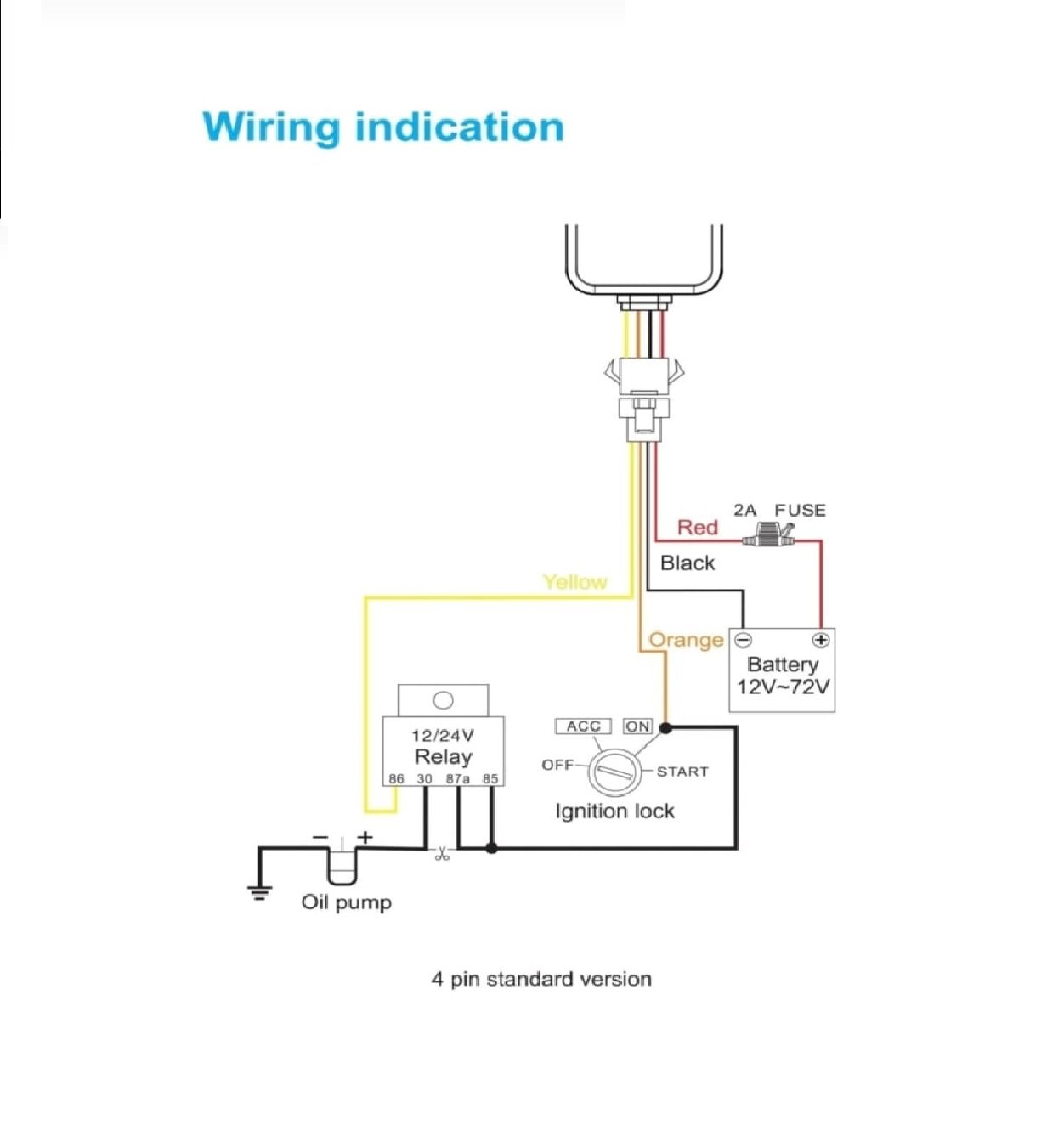
For standard plug-and-play models, locate your vehicle's OBD-II port (usually under the dashboard on the driver's side). Firmly push the device into the port until the LED indicator illuminates. For hardwired models, please consult the included wiring schematic or seek professional installation.
Devices may briefly show as offline if the vehicle is parked in an underground garage or an area with poor cellular reception. If the vehicle is in a clear area and has been driven for more than 15 minutes, try unplugging the device for 60 seconds and plugging it back in to force a network reset.
• No active data plan: The BB GPS tracker’s SIM card may have run out of data or expired. Check the account via contacting 9884441091
• Weak cellular coverage: Trackers use cellular networks to transmit location data to the server. If the tracker is in a dead zone, data won't show.
• Dead battery: The GPS trackers may simply be out of power or require charging.
• Wired connection issues: For vehicle trackers, check if the external power supply is disconnected, if a fuse has blown, or if the vehicle's main battery is drained or disconnected.
.
Open the Black Boxes mobile app and navigate to Settings > Data Management > Export Trip History. You can select a date range and choose to export the data as a CSV or PDF file directly to your email.
Yes. The Black Boxes dashboard supports fleet management. Simply purchase additional hardware units and tap "Add Device" in your mobile app. All vehicles will appear on your master map simultaneously.
All Black Boxes GPS devices including wired and wireless devices will need a Micro size sim card [Middle size].
Device comes with 2 years replacement warranty except manual damage and water damages. To claim warranty Call 9884441091 and complain the issue, Customer support will guide you further to replace the device.
Still need assistance?
Our technical experts are available across multiple channels.